
Prepare your Hevy workout history
Import is included in Setlane Free and Pro. You need a permanent Setlane account and an internet connection; guest mode cannot import. Keep the original CSV until you have checked the result.
The screenshots show a sample training history in Setlane’s dark theme.
1. Export your workouts from Hevy
In Hevy, open Profile → Settings → Export & Import Data → Export Data → Export Workouts. Save the workout CSV to your Android device. Choose workouts, not measurements.
Setlane accepts Hevy exports with either weight_kg or weight_lbs. It reads the unit from the file and stores the weight in kilograms. Setlane can then display your preferred unit; display rounding can differ slightly from Hevy.
Use the original export rather than a spreadsheet that has reformatted dates or renamed columns. If the file is not recognized, export it again with the source app set to English. Exercise names can still be matched separately.
What transfers from a Hevy CSV?
Hevy stores more than weights and reps in its workout export. Setlane reads supported set types and superset groups too. Check the boundaries below before importing, especially if your history includes circuits, cardio or body measurements.
| Data | What to expect |
|---|---|
| Workout history | Dates, workout names, supported weights and reps, exercise comments and valid RPE values. |
| Set types | Normal sets, warm-up sets and drop sets are preserved when the export contains supported markers. |
| Supersets | Hevy superset groups can be transferred. Review warnings if a group cannot be reconstructed. |
| Not transferred | Saved routines, body measurements, workout-level notes, distance and duration of individual sets. |
2. Open the import menu in Setlane
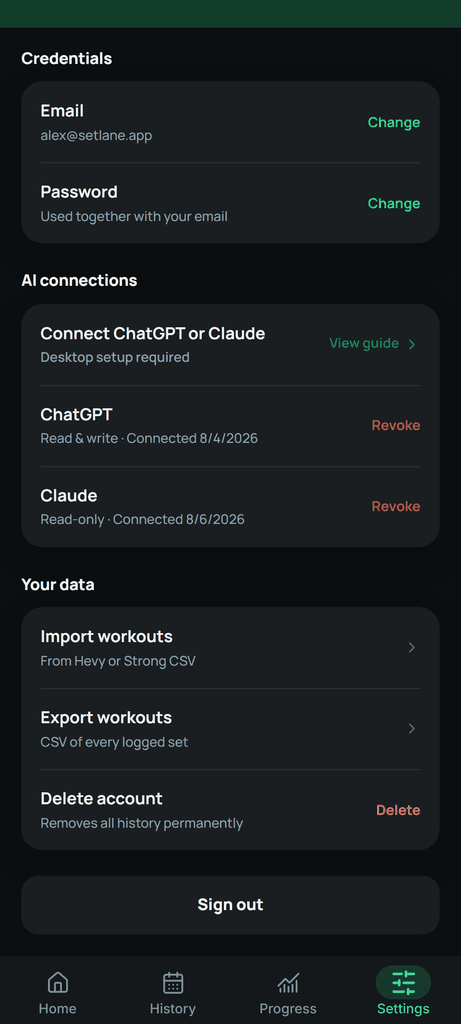
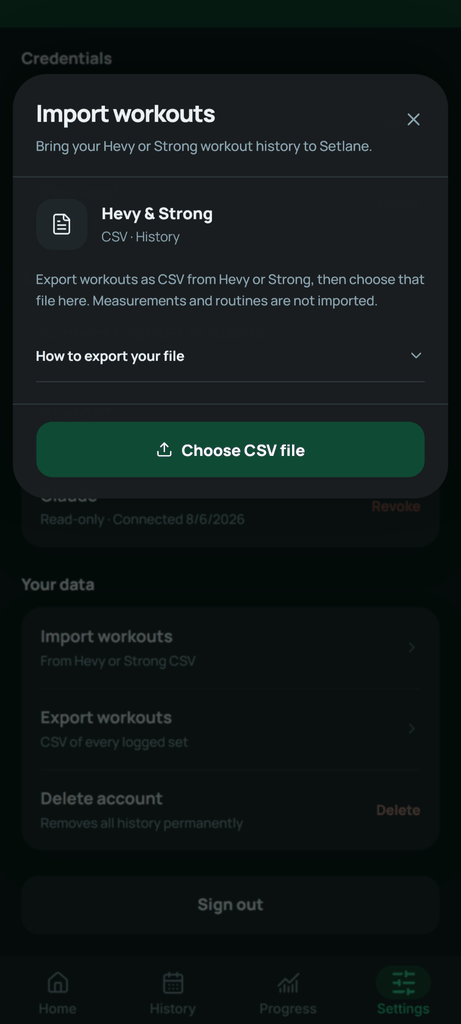
Open Settings → Account → Import workouts. Tap Choose CSV file and select your export. Setlane detects whether it came from Hevy or Strong.
3. Check the time zone and match exercises
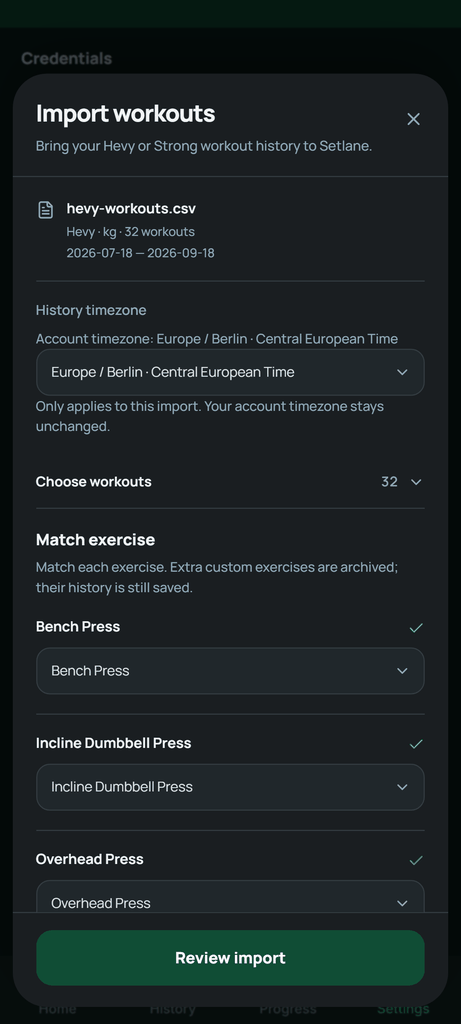
Check History timezone against the location where the sessions were recorded. This setting applies to this import and does not change your account time zone. Expand Choose workouts if you only want to move selected sessions.
Hevy and Setlane may label the same movement differently. For each match, compare the equipment and movement: Bench Press (Barbell) belongs with a barbell bench press, not a dumbbell press. Review the suggested matches before creating custom exercises. If you skip a member of a Hevy superset, check the preview for a warning about the remaining group.
4. Review the preview, then import
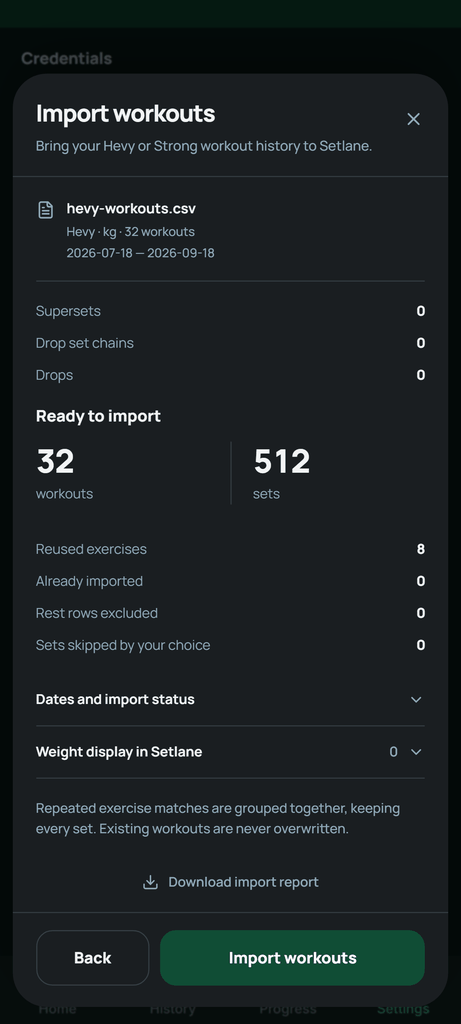
Tap Review import and compare the workout and set totals with the sessions you selected. Check any warnings about supersets or drop sets, then look at dates and possible duplicates. An incomplete group may need attention even when its individual sets can be imported. Existing workouts are not overwritten.
On Free, you can keep five custom exercises active. Extra custom exercises are archived with their history rather than losing their sets. The preview lets you choose which new exercises use the available active slots.
After importing, open a familiar Hevy session in History. Compare a main lift and a superset with the original: exercise matches, set types, weights, reps and RPE. Check the session’s date and duration too. If anything differs, the import report helps distinguish skipped data from display rounding.
What happens to older workouts?
Imported sessions older than 90 days remain stored, but viewing them inside the app requires Pro. Free can still export the full workout history to CSV, including these older sessions. Importing does not remove the Free history viewing limit.
If something does not look right
If the file is rejected, check that it is a direct workout export in a supported format, not a measurement file. Setlane accepts files up to 20 MB and 100,000 data rows. A workout can contain up to 1,000 sets.
If a date or exercise looks wrong, return to matching before saving. If the connection fails during saving, use Retry remaining import when offered. Some workouts may already be saved; check the completion counts and report instead of assuming nothing was imported.
Contact Setlane support · Setlane vs Hevy · Hevy alternatives
Frequently asked questions
Is importing from Hevy free?
Yes. CSV import is available on Free and Pro. Free still has a 90-day in-app history window and five active custom exercises; older workouts and archived exercise history remain stored.
Will my Hevy supersets transfer?
Yes, Setlane can read superset groups from a Hevy workout CSV. The group needs at least two distinct matched exercises. Skipping a member or mapping different members to the same exercise can break the group; review the preview warnings before importing.
Do I need to convert pounds to kilograms first?
No. Setlane accepts Hevy exports with a weight_lbs or weight_kg column and handles the conversion. Keep the original values and column names. You can choose your display unit in Setlane; small visual differences can come from rounding.